How to download your Snapchat data
Updated August 2026 · 2-minute read · screenshots from Snapchat for iPhone
Snapchat will hand over everything you've ever saved — every Memory, in original quality. You just have to ask. Asking takes about two minutes on your phone; here's every tap, and what to do with the zip files they email you.
Worth doing sooner rather than later: Memories over the free 5 GB cap start getting deleted in September 2026. The export is free, doesn't touch your account, and ends with your own permanent copy — a set of mydata~….zip files. (One catch we'll get to: the files inside arrive with their dates, places and captions stripped off.)
STEP 1Open your profile, tap the gear
In Snapchat, tap your avatar in the top-left, then the ⚙️ gear in the top-right to open Settings.

You're in Settings — keep scrolling
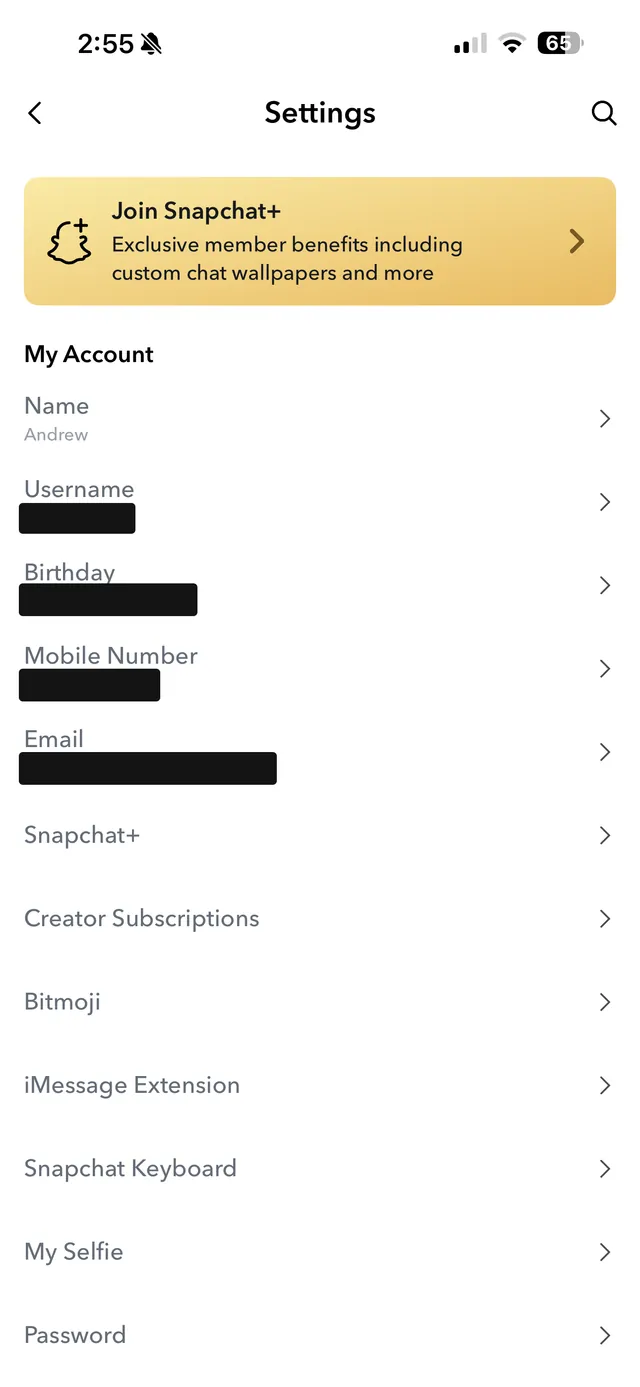
Settings opens on My Account. Ignore all of it and scroll down. A long way.
Tap “My Data”
Just past the privacy section you'll find My Data — Snapchat's data-export page.
Tap “Request Only Memories”
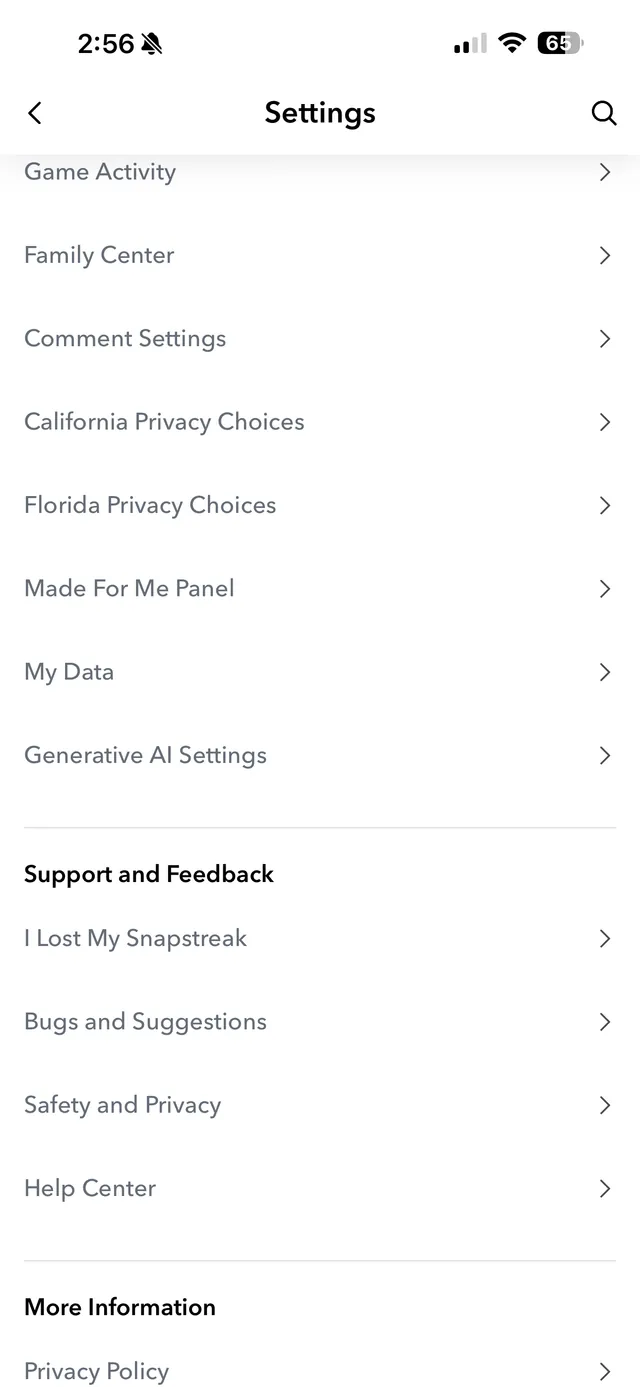
Snapchat offers ten kinds of data. For your photos and videos you need exactly one: the blue Request Only Memories button flips on the Export your Memories toggle and nothing else.
Pick “All Time”, confirm your email, hit Submit
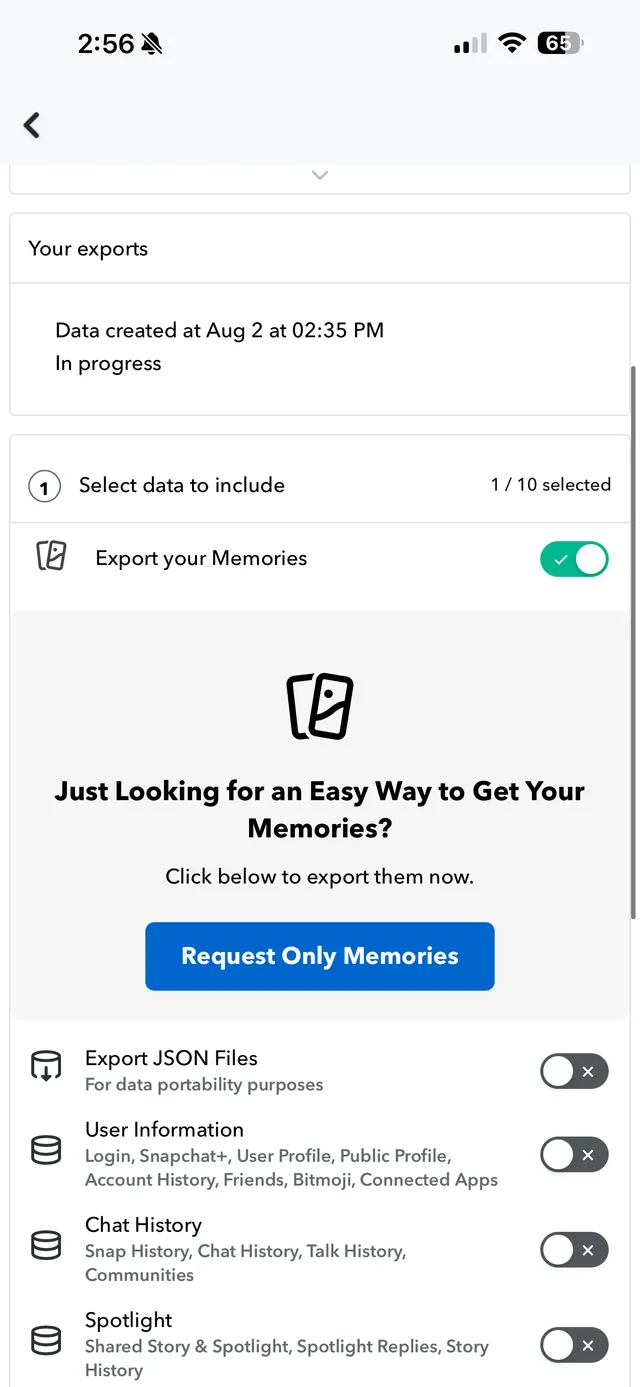
Turn on the date-range option and choose All Time — otherwise you only get recent history. Make sure the email address is yours (that's where the download links go), then Submit.
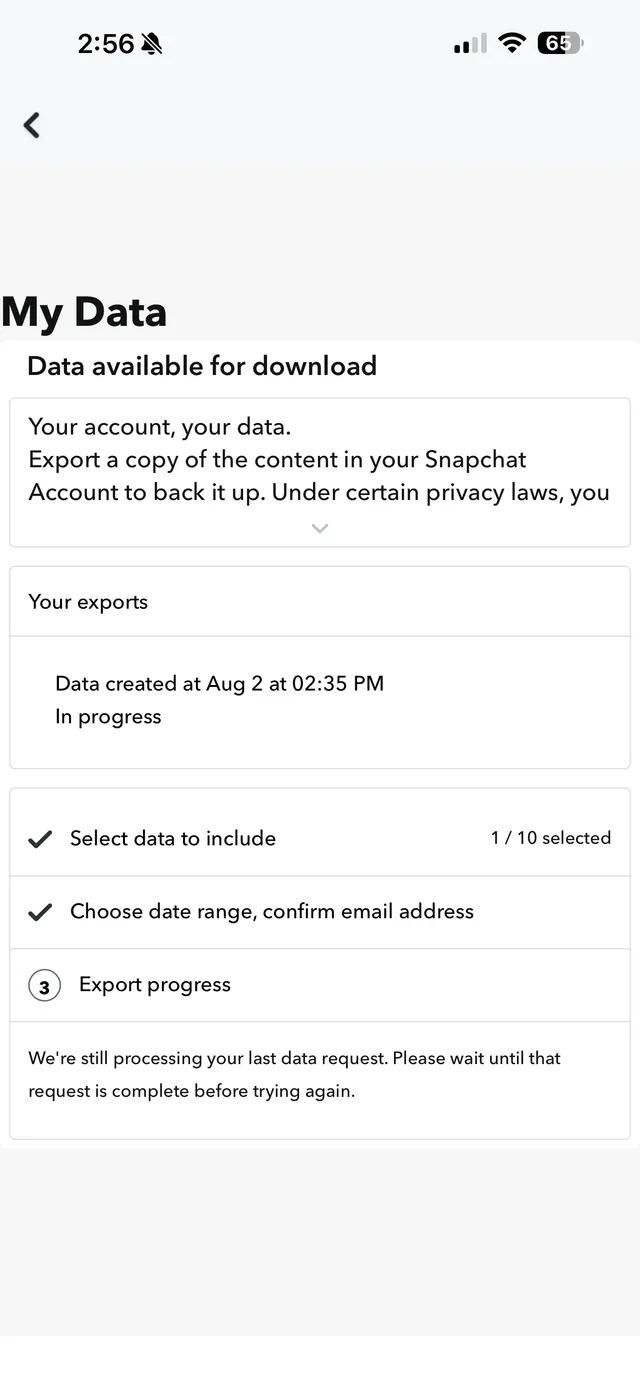
That's it — Snapchat is packing your bags
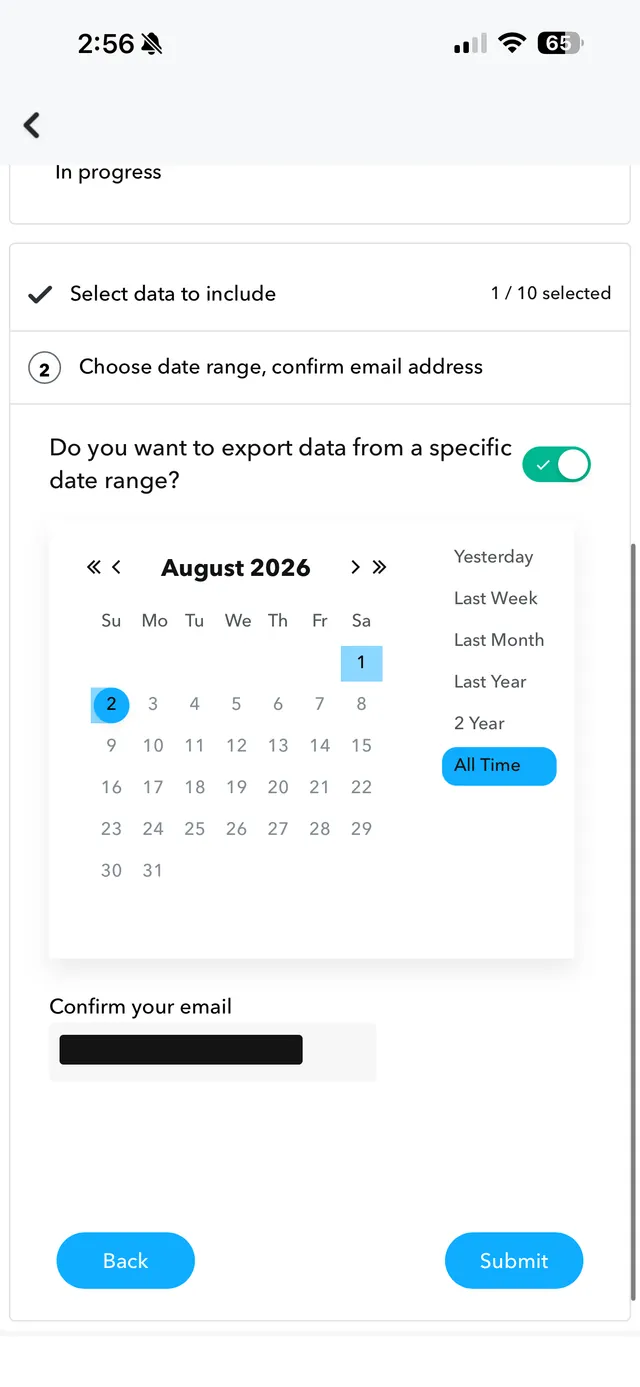
Your request shows as In progress. Small libraries take minutes; years of Memories can take a day or two. You can't queue a second request while one is running, so make it count (that's what All Time was for).
No phone handy?
What happens next
Snapchat emails you when the export is ready. Inside are download links to your mydata~….zip files — a big library arrives as several zips, and you want all of them.
Two things worth knowing: the links expire after about a week, so don't sit on that email. And don't unzip anything — the tools below take the zips exactly as they arrive.
You have the zips. Now un-break them.
Open the export and you'll see the damage: every photo and video has lost its date, its place and its caption. That's not your phone being weird — that's how Snapchat ships it. Unsnap reads the metadata buried in the export and writes it all back onto every file.
Free desktop app for Mac & Windows — nothing is uploaded, your photos never leave your computer.
Runs entirely on your iPhone — nothing uploaded. It's in open beta, so you'll need Apple's free TestFlight app first.
Works right from your phone — upload the zips, we email you a download link, files auto-delete after 7 days.
On a different device? Every version of Unsnap →